
WiFi and Bluetooth
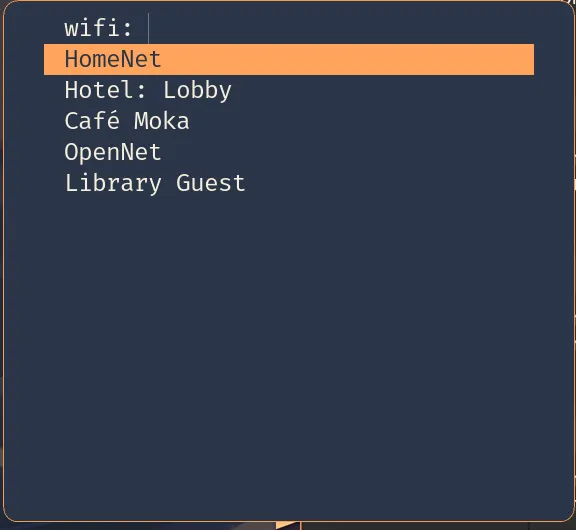
Super+w opens the WiFi picker and Super+b the Bluetooth one. The
bar opens the same pickers: a click on the network module (fed the
bar’s own scan), and a click on the bluetooth module (the whole
Super+b menu). The bluetooth module’s own default click toggles the
adapter’s power, which would drop a Bluetooth keyboard with one stray
click, so the profile rebinds the click to the picker. The module’s
menu action (scootbar msg invoke bluetooth menu) opens the picker
fed the bar’s device list. Both are dmenu menus through the
launcher’s dmenu contract, themed like it, and both are
scripts over the stock CLIs (nmcli, bluetoothctl). Nothing runs
between picks.
The profile installs the CLIs and never takes over a service:
NetworkManager and BlueZ are yours to enable
(networking., hardware.).
Without them the pickers fail with an error (below).
WiFi. The menu lists the networks in range from the cached scan (saved ones first), then saved networks out of range. Pick one:
- A saved network (matched by its SSID, whatever its profile is named) connects at once: NetworkManager kept its key.
- An open network joins directly.
- A secured network asks for its key in a masked prompt, unless the
keyring already holds it. To skip the prompt, stash it once:
secret-tool store --label='WiFi Home' scoot-wifi 'Home'. The key reachesnmclion stdin, never in an argument (the process table is readable by every user), and NetworkManager keeps it after the first join (system-owned, in/etc/NetworkManager/system-connections). - A wrong key fails with an error, and the failed join leaves no profile behind, so the next pick asks again. A key from the keyring that the network refuses (a changed password) brings up the prompt at once: the typed key joins, and NetworkManager keeps that one. Update the keyring entry yourself; the picker never writes it.
- Hidden and enterprise (802.1X) networks fail with no prompt: a
key cannot join them. Join those once from a terminal (
nmtui, ornmcli device wifi connect NAME hidden yes --ask); after that they are saved networks.
The picker reads the cached scan and never rescans: the bar’s network module scans when it opens its own menu, and NetworkManager rescans on its own schedule. Once you have picked a network (and typed its key), the join runs on its own: clicking the bar again closes an open menu or key prompt (the one after a refused keyring key too), but never cuts a join under way, so a failed one still cleans up after itself.
Bluetooth. The menu opens on a state row (Bluetooth is on (1
connected)), and picking that row does nothing, so a stray Enter
never drops a device. Under it are the paired devices, starred while
connected: picking one connects it, or disconnects it if connected.
Low-energy devices (earbuds, mice) are listed too when they are not
advertising as discoverable (bluetoothctl prints those rows in gray).
Below them:
-
Pair a new device… listens for 10 seconds, then lists the devices it found in pairing mode. A device that advertises without being in pairing mode (a neighbour’s earbuds, a beacon) is left out:
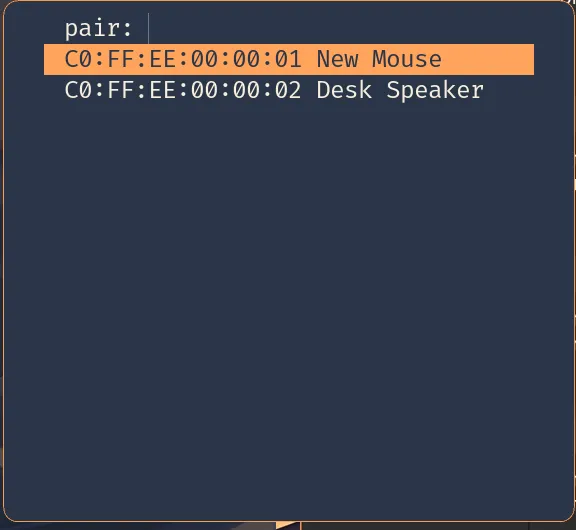
Pick one and it pairs, is trusted (so it reconnects on its own) and connects. The picker registers no pairing agent of its own, so BlueZ pairs the “just works” way (
NoInputNoOutput), or through your session’s default agent if one runs: headsets, mice, speakers and most keyboards pair this way. A device that insists on a typed PIN pairs from a terminal:bluetoothctl, thenscan onandpair MAC. -
Audio output… (with the audio slot on) switches the default sink through
scoot-audio-sink: pick the headset you just connected. -
Turn Bluetooth off or, while off, Turn Bluetooth on (the only row then).
A device is named by the name bluetoothctl devices lists (its
alias: the device’s own name unless you renamed it) or by its own
name, which is what the bar shows. Two devices answering to one name
are refused rather than guessed between; pick by address from
Super+b, which lists them.
Failures say why, as a notification and on stderr (the session
journal): no Wi-Fi device (a VM, a desktop without a card) or one
whose radio is off, NetworkManager not running (nmcli’s own reason),
no Bluetooth controller, no BlueZ at all, or BlueZ’s own reason for a
failed connect, pair or power switch (a failed pair stops there:
nothing is trusted or connected). Every bluetoothctl call is
bounded, because with no bluetoothd on the bus it would wait forever: a
query (the list, a device’s details) gives up after 5 seconds, a
connect after 30, a pair after 60, and the message names the bound it
hit (“BlueZ is not answering (no reply within 5 s …)” for a query).
Cancelling a menu (Escape) joins and pairs
nothing.
The same scripts run from a terminal:
scoot-network-pick list # the menu's rowsscoot-network-pick connect 'Home' # join by SSIDscoot-bluetooth-pick list # paired devices, * while connectedscoot-bluetooth-pick connect 'WH-1000XM4' # or disconnect, pair; by name or MACscoot-bluetooth-pick power offEvery value is an option, applied on rebuild/switch (the binds
re-render into [binds], so scoot msg reload is enough):
| Option | Type | Default | Meaning |
|---|---|---|---|
desktop. |
bool | true with the profile |
nmcli and the picker on PATH, Super+w bound, the bar’s network module opening the picker |
desktop. / . |
package or null | networkmanager / scootlaunch (Linux-only: null off Linux) | point at your own builds (the menu is the launcher’s own, one derivation) |
desktop. |
bool | true with the profile |
bluetoothctl and the picker on PATH, Super+b bound, a click on the bar’s bluetooth module (and its menu action) opening the picker |
desktop. / . |
package or null | bluez / scootlaunch (Linux-only: null off Linux) | same |
desktop. / . |
bool | true |
theme the picker from the look; false keeps the menu’s own style |
desktop. / . |
bool | true |
bind Super+w / Super+b (false leaves that combo unbound) |
The bar half needs the bar module imported and the module built in
(the default build has both). A menu-command, connect-command or
on-click you set in programs. wins per key (set
bluetooth. to have the power toggle back).
Troubleshooting, by symptom:
Super+worSuper+bdoes nothing. Look for the notification first: every failure raises one. None at all means the bind never fired: the slot (apps./network. enable apps.) or the keymap is off, or your ownbluetooth. enable settings.took the combo (an older bar setup toggling the bar onbinds super+b, say; yours wins). To keep both, give the picker another combo withbinds.plus abluetooth. enable = false settings.entry runningbinds scoot-bluetooth-pick pick).- “no usable Wi-Fi device”.
nmcli deviceshows none of typewifi, or it isunavailable: a radio switched off (nmcli radio wifi on), rfkill, or no hardware. - “BlueZ is not answering”.
systemctl status bluetooth: the daemon is not running, orhardware.is off.bluetooth. enable - A device is not in the pair list. It was not in pairing mode
during the 10-second listen: either it was not advertising, or it was
advertising without being discoverable (
bluetoothctl devicesprints it in gray), which a device already paired to another computer or phone often does. Put it in pairing mode first, then pick Pair a new device… again. - “more than one device is named …” (from the bar, or by name from
a terminal). Two devices share a name: pick from
Super+b, which lists them by address. - A network keeps failing with the right key. A profile with an old
key stays saved (one this picker did not create):
nmcli connection delete 'Home', then pick it again.